Small-Space Gaming + Work Desk Setup for Renters
You don’t have room for two desks. You barely have room for one. But you need a spot that handles spreadsheets and Slack from 9 to 5, then turns into a gaming station after dinner—all in a corner of a rental where you can’t drill a single hole.
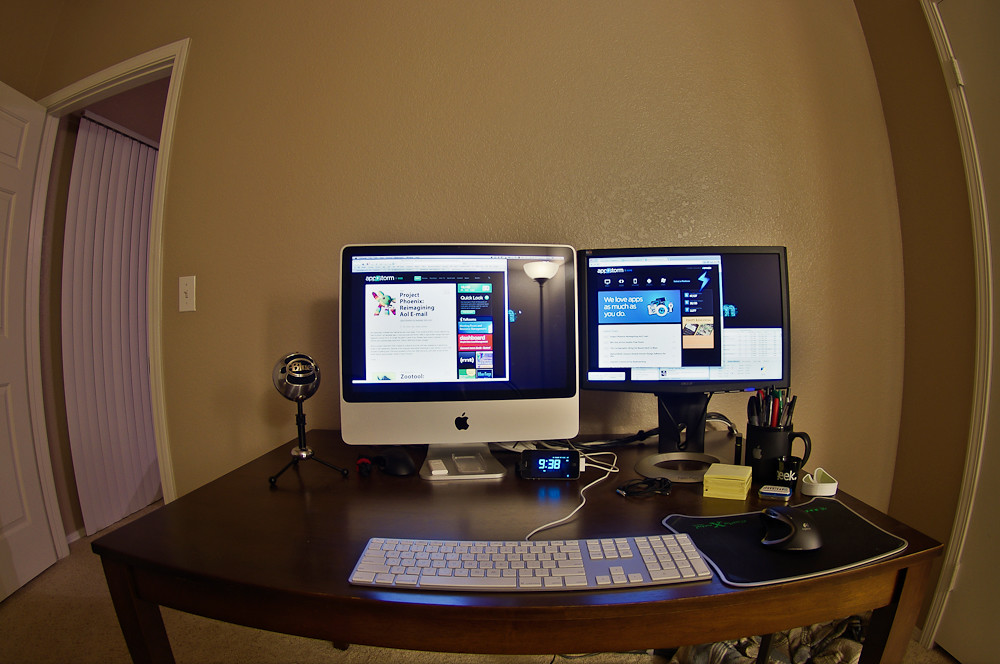
Good news: one well-planned desk can do both. The trick isn’t buying bigger gear; it’s choosing pieces that pull double duty, reclaiming vertical and under-desk space, and building a fast way to flip between “work mode” and “play mode.” Here’s how to put it together without sacrificing your back, your sanity, or your security deposit.
Start With the Desk: Smaller Than You Think
The instinct is to buy the widest desk that fits. Resist it. A desk that’s too deep pushes your monitor too close and eats the floor space a small room can’t spare. What you actually want is a desk sized around your peripherals, not your fears.
How much surface you really need
For a combined work-and-gaming setup, aim for:
- Width: 40–47 inches. Enough for a keyboard, mouse with full sweep room, and a few off-to-the-side items (notebook, controller charger, drink).
- Depth: 24–28 inches. Deep enough for proper monitor distance once you add a monitor arm (more on that below). Anything shallower than 22 inches gets cramped fast.
Ergonomic guidance puts your monitor roughly an arm’s length away (about 20–30 inches from your eyes), with the top of the screen at or just below eye level. A 24-inch-deep desk only hits that arm’s-length number if you free up the back of the desk—which is exactly what a monitor arm does.
Desk features worth prioritizing in a rental
- A flat, sturdy top with a back edge that can clamp a monitor arm (no drawer or rounded lip in the back two inches).
- Cable routing built in, like a grommet hole or a rear gap, so you’re not improvising later.
- A footprint that tucks into a corner if needed. Corner placement frees wall space and hides the cable mess against two walls instead of one.
You don’t need a motorized standing desk to be ergonomic, but if you sit for both work and play, a sit-stand option earns its keep by getting you out of the chair across a 10+ hour combined day.
Add a Monitor Arm to Get Your Desk Back
If you do one thing from this article, do this. A monitor arm is the single highest-impact upgrade for a small dual-use desk, and it solves three problems at once.
It frees the surface. A standard monitor stand occupies 8–10 inches of precious depth. An arm clamps to the back edge and floats the screen, giving you back the prime real estate where your keyboard and arms actually live.
It fixes your posture for both modes. Work and gaming have slightly different ideal angles—you might want the screen a touch lower and closer when leaning into a match, higher and squared-up when typing all day. An arm lets you adjust in seconds instead of stacking books under a stand.
It makes dual monitors realistic. Want a second screen for a game guide, Discord, or a work dashboard? A dual arm fits two displays into the width a single stand-mounted monitor would awkwardly occupy.
On a shallow desk, the arm choice matters—some have deep bases or wide clamps that don’t fit a 24-inch top well. Look for a slim C-clamp and an arm with enough forward reach to pull the screen close when gaming and push it back when working.
Best Monitor Arms for Small & Shallow Desks (Single & Dual)
Cable Management for a Crowded Setup
A dual-use desk has more plugged in than a pure work desk: monitor, PC or laptop dock, console maybe, gaming keyboard and mouse, headset, charger, lights, speakers. Without a plan, that’s a snake pit under your knees and a dust trap you’ll never reach.
The under-desk approach that doesn’t risk your deposit
Skip anything that screws into the desk if you’re renting—but the desk surface itself is usually fair game (it’s your furniture, not the landlord’s wall). The real no-go is drilling into walls. For everything else:
- A no-drill under-desk tray mounted with clamps or strong adhesive holds a power strip and the worst of the cable slack off the floor.
- Adhesive cable clips along the rear edge route individual cables cleanly. Use removable-adhesive versions and test on a hidden spot first.
- A single power strip with surge protection consolidates everything into one wall outlet—important in older rentals with limited outlets.
- Cable sleeves or a zip-up wrap bundle the runs between the desk and the wall so they read as one tidy line instead of ten.
The payoff in a small room is bigger than tidiness: cables off the floor mean you can actually clean, vacuum, and reposition the desk without unplugging your whole life.
Best No-Drill Under-Desk Cable Management Trays
A Chair That’s Comfortable for Hours—but Compact
This is where work and gaming setups usually clash. Big “gaming chairs” with racing-bucket shells and tall wings look the part but dominate a small room and often have shallow ergonomic adjustability. A giant executive chair has the same footprint problem.
For a tiny apartment, prioritize a chair that’s ergonomically adjustable and physically compact:
- Adjustable seat height so your feet rest flat and knees sit around 90 degrees (use a footrest if the desk is fixed-height and a little tall).
- Real lumbar support, since you’ll be seated for long combined sessions—aim to keep the natural inward curve of your lower back supported.
- Armrests that adjust to keep your forearms roughly parallel to the floor and shoulders relaxed, whether you’re typing or gripping a mouse.
- A smaller backrest and base that tucks under or close to the desk so the chair doesn’t claim half the room when you stand up.
Follow the standard movement guidance regardless of the chair: take a short break and change posture roughly every 30–60 minutes. No chair, ergonomic or not, is healthy to sit in motionless for a 12-hour work-then-game marathon.
Best Compact Ergonomic Chairs for Small Apartments
No-Drill Mounting: Protecting Your Deposit
Renters can build a serious setup without touching a drill. The key is matching the mounting method to the surface.
- Monitor arms and under-desk trays clamp to the desk—no wall, no holes.
- Headset hooks, controller holders, and small shelves can use heavy-duty removable adhesive strips. Stay well under the product’s rated weight, press firmly, and let adhesive cure the full recommended time before loading it.
- Lighting and small accessories mount with the same removable strips or simply rest on the desk.
- Avoid wall anchors, screws, and nails entirely—those are what turn into deposit deductions.
A quick reality check before you stick anything: test removable adhesive on an inconspicuous patch, follow the manufacturer’s surface and weight limits, and don’t trust adhesive with anything heavy or breakable overhead.
Managing Heat and Noise in a Small Room
A gaming PC throws off real heat and noise, and in a small closed room you’ll feel both fast—especially if you’re also taking work calls there.
For heat:
- Leave a few inches of breathing room around the PC and any console; don’t box electronics into a sealed cubby.
- Keep the tower off thick carpet, which blocks bottom intake fans. A simple hard riser or board helps airflow.
- Crack a door or window during long sessions. A small room with the door shut and a gaming rig running can climb several degrees in an hour.
For noise:
- Position the PC so its fans aren’t pointed straight at your microphone or your ears.
- Soft furnishings—a rug, curtains, a fabric chair—absorb sound and cut the echo that makes small rooms feel loud on calls.
- If fan noise bleeds into work meetings, a headset with a noise-reducing mic does more for call quality than chasing a silent PC.
None of this requires a bigger room. It just requires not trapping your equipment in the one corner with the least airflow.
Switching Between Work Mode and Play Mode
The hardest part of a dual-use desk isn’t the hardware—it’s that your brain doesn’t want to relax for games at the exact spot it stresses about work. A deliberate switch helps both your focus and your downtime.
Make the transition physical and fast
- Reposition the monitor. Pull it slightly closer and lower for gaming, push it back and square it up for work. Two seconds on an arm, and your body registers the change.
- Swap or stow your work tools. Tucking the work laptop into a drawer or bag and bringing out the controller is a small ritual that signals “off the clock.”
- Use separate profiles. Different desktop backgrounds, lighting scenes, or even user accounts cleanly separate the two modes—no work tabs glaring at you mid-game.
- Reset the surface. Clear the work clutter (notebook, water glass, papers) into one tray. A clean desk reads as a fresh start.
The goal is a 60-second reset that tells your brain the role of the space has changed. In a small apartment where you can’t physically walk to a different room, that mental boundary is what keeps work from bleeding into your evenings.
Putting It All Together
A great small-space dual-use desk isn’t about cramming more in—it’s about choosing fewer, smarter pieces:
- A right-sized desk (40–47 inches wide, 24–28 deep), ideally in a corner.
- A monitor arm to reclaim depth and dial in posture for both modes.
- No-drill cable management to clear the floor and the clutter.
- A compact, genuinely ergonomic chair for the long combined day.
- Removable mounting for accessories—deposit intact.
- A little airflow and sound planning so the room stays livable.
- A fast work/play switch to protect your focus and your rest.
Build it once, thoughtfully, and a single corner can carry your whole day—9-to-5 and the match after.
FAQ
Can one desk really work for both gaming and a day job?
Yes. The hardware needs overlap almost entirely—a stable surface, a well-positioned monitor, an ergonomic chair, and good cable management serve both. The main extra work is mode-switching habits, not buying separate gear.
What size desk is best for a small apartment?
For a combined setup, 40–47 inches wide and 24–28 inches deep handles a monitor plus peripherals comfortably without dominating the room. Going deeper than 28 inches usually wastes floor space, and a monitor arm lets a 24-inch-deep desk still hit proper screen distance.
Do I need a gaming chair or a work chair?
Neither label matters—adjustability does. A compact ergonomic chair with adjustable height, real lumbar support, and adjustable armrests beats a bulky racing-style gaming chair in a small room, and it’s better for long work sessions too.
How do I manage cables without drilling into the desk or wall?
Use a no-drill under-desk tray (clamp- or adhesive-mounted), removable adhesive cable clips along the back edge, and a single surge-protected power strip. Avoid wall screws and anchors entirely to protect your deposit.
How do I keep a gaming PC from overheating in a small room?
Leave a few inches of clearance around the tower, keep it off thick carpet so bottom fans can breathe, and crack a door or window during long sessions. A small closed room heats up quickly with a rig running.
How do I mentally switch from work to gaming at the same desk?
Build a quick physical ritual: reposition the monitor, stow the work laptop, switch to a different lighting or desktop profile, and clear the work clutter. A 60-second reset signals to your brain that the space has changed roles.