Dorm Desk Setup: Ergonomic on a Tiny Built-In Desk
Most dorm desks weren’t designed for eight-hour study sessions on a laptop. They’re shallow, bolted to the wall at a fixed height, and you’re not allowed to drill, paint, or replace them. That’s the reality of a built-in desk — and it’s also a solvable problem.
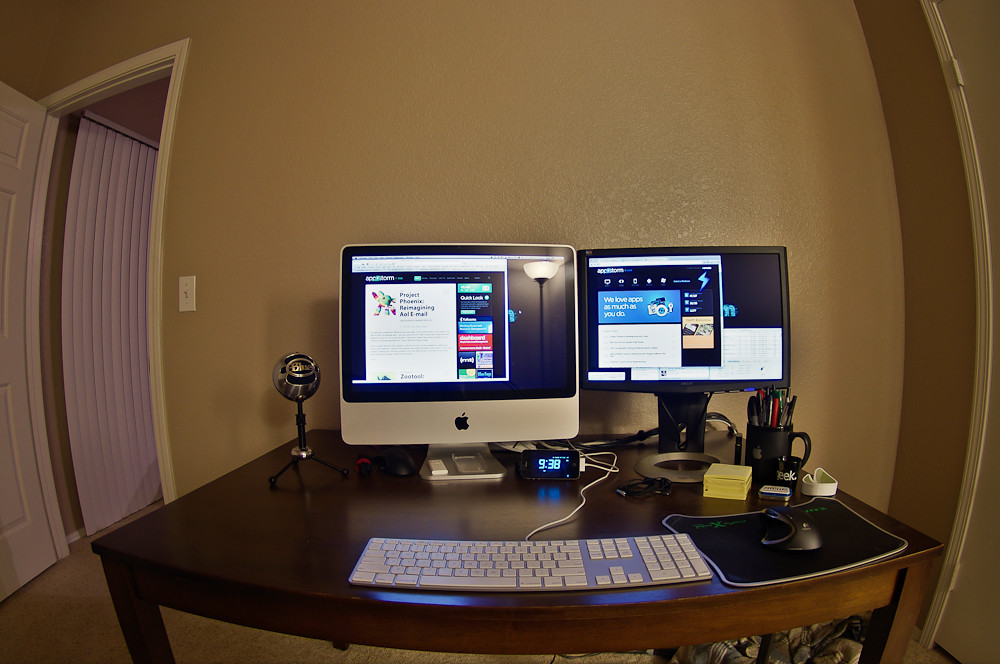
You can’t change the desk. But you can change how you sit at it, where your screen lands, and how you store everything when your roommate has friends over. This guide walks through an ergonomic dorm setup that respects your neck, your shared space, and your security deposit.
Start With the Constraint: A Fixed-Height, Shallow Desk
Before buying anything, understand what you’re working with. Two things define a dorm desk:
It’s a fixed height. Standard desks tend to sit around 28–30 inches tall. That’s fine for writing by hand, but it’s usually too high for comfortable laptop typing, especially if you’re shorter. You can’t lower it, so you’ll adjust your chair and your body position instead.
It’s shallow. Many built-in desks are only 18–24 inches deep. A laptop pushed back enough for a good viewing distance leaves almost no room for your forearms — or a textbook.
The goal isn’t a perfect office. It’s getting your eyes, neck, wrists, and back into reasonable positions with gear that clamps, stacks, or tucks away.
The ergonomic baseline: Top of your screen at roughly eye level, screen about an arm’s length away, elbows bent near 90 degrees, wrists straight, feet flat. We’ll get as close to that as a built-in desk allows.
Fix Your Eye Level: Laptop Stand + External Keyboard
This is the single most important change you can make, and it solves the biggest problem with laptop study: the screen is too low, so you crane your neck down for hours.
A laptop screen and keyboard are attached, so you can only put one of them in the right place at a time. Raise the laptop to fix your neck, and now the keyboard is too high for your wrists. The fix is to separate them.
How it works
- Put your laptop on a stand so the top of the screen sits at about eye level. On a tall dorm desk you may not need much lift — even a few inches can be enough. Test it by looking straight ahead; your eyes should land near the top third of the screen.
- Add a slim external keyboard and a mouse on the desk surface in front of the stand. Now your hands work at desk height while your eyes look forward.
This keyboard-and-stand combo is the core of an ergonomic laptop setup, and it costs less than most people expect. A stand also improves airflow, which keeps the laptop cooler during long sessions.
For picking a stand that suits a shallow desk, see Best Laptop Stands for Small Desks. Look for one that folds flat — it slides into a drawer or backpack when you need the desk back.
If the desk is too tall to begin with
If raising the laptop pushes the screen above eye level even at the stand’s lowest setting, do the opposite: raise yourself. Lift your chair so your elbows reach the desk comfortably, then add a footrest (more on that below) so your feet aren’t dangling.
Clamp-On Accessories That Won’t Break Dorm Rules
Most housing contracts ban drilling, screws, and adhesives that peel paint. Clamps are the workaround. They grip the edge of the desk, hold firmly, and leave nothing behind when you move out.
A few clamp-on items that earn their desk space:
- Clamp-on monitor arm or laptop mount — if you add an external monitor, an arm clamps to the desk edge and floats the screen above the surface, freeing the shallow desktop entirely. Check your desk edge thickness against the clamp’s range before buying.
- Clamp-on cup holder — keeps your drink off the desk and away from your keyboard, which matters more on a small surface.
- Clamp-on headphone hook — gets your headset out of the way without a single hole in the wall.
- Under-desk clamp trays — small trays that clamp beneath the desk to hold a tablet, cables, or supplies, reclaiming the surface above.
A quick checklist before you buy any clamp: confirm the clamp opening fits your desk’s edge thickness, that the desk edge is accessible (not flush against a wall on all sides), and that the clamp pads are protective so they don’t dent the finish.
Lighting Without Floor Space
Dorm overhead lighting is usually one harsh ceiling fixture, which causes glare and squinting. You want a focused task light, but you don’t have floor space for a lamp — and you can’t mount anything to the wall.
Good options that need no floor and no drilling:
- Clamp-on desk lamp — grips the desk edge or a shelf and aims light onto your work, not your screen. This is the most reliable choice for a built-in desk.
- Monitor light bar — rests on the top edge of a monitor and lights the desk without taking up surface area or causing screen glare. Only useful if you run an external monitor.
- Stick-free LED strip — battery or USB-powered strips that sit on a shelf rather than adhering to the wall, adding soft ambient light.
Aim task light from the side, not directly behind or in front of you, to cut glare and shadows. A warmer tone in the evening is easier on the eyes during late study sessions.
Chair Options That Actually Fit
Dorm-issued chairs are often hard, non-adjustable, and the wrong height for the desk. You usually can’t swap in a full office chair — there’s no room to store one, and some dorms don’t allow them. Work with what fits the space.
If you keep the dorm chair, upgrade it cheaply:
- A seat cushion improves comfort on a hard seat.
- A lumbar cushion supports your lower back so you’re not slumping forward toward the shallow desk.
- A footrest matters a lot here. Because the desk is fixed-height, you’ll often raise your chair to reach it comfortably — which leaves your feet dangling. A footrest (or even a sturdy box or stack of books) keeps your feet supported and takes pressure off your thighs.
If you can bring your own chair, prioritize a compact, armless or low-back model that slides fully under the desk so it doesn’t block a tight room. Armrests often collide with a shallow desk and force you to sit too far back, so armless can be the better call in small spaces.
For more on dialing in chair height and back support in a small room, see How to Set Up an Ergonomic Desk in a Small Bedroom.
Storing and Hiding the Setup
A shallow desk fills up fast, and you’ll want it clear for non-screen tasks — or just to make the room feel less cluttered. Build your setup so it packs down.
- Choose foldable gear. A folding laptop stand and a slim keyboard can disappear into a single drawer in seconds.
- Go vertical. Use the wall-free vertical space you do have: a desktop shelf riser, a clamp-on shelf, or an over-desk organizer keeps books and supplies off the work surface.
- Corral the cables. A clamp-on cable tray or a small zip pouch keeps cords from tangling across a small desk. Loop excess length and tie it off so nothing dangles.
- Keep a “pack-down” routine. When you need the desk for something else, the keyboard, mouse, and folded stand go into one drawer, and the surface is clear in under a minute.
This matters more in a dorm than in a private apartment, because the desk often doubles as your only flat surface for eating, projects, and everything else.
Respecting Roommates and Shared Space
Ergonomics in a shared room isn’t only about your body — it’s about not making your study setup your roommate’s problem.
- Manage light and sound. A focused task lamp lets you study without flooding the whole room with light when someone’s sleeping. Headphones keep your audio to yourself.
- Keep your footprint contained. Clamp-on and foldable gear means your setup stops at the edge of your desk. Cables stay corralled, not snaking across shared floor.
- Mind shared outlets. Dorm rooms have limited outlets. A small surge-protected power strip you both can use is friendlier than monopolizing the wall.
- Pack down when the room’s in use. A setup that clears in a minute makes it easy to give the shared space back when your roommate needs it.
Small courtesies like these are what keep a tiny shared room livable for two people pulling long hours.
FAQ
Can I make a dorm desk ergonomic without drilling or sticking anything to it?
Yes. Clamp-on accessories (lamps, monitor arms, hooks, trays) grip the desk edge and leave no marks, and a laptop stand plus external keyboard sits on the surface. None of it requires drilling, screws, or adhesives, so your deposit stays safe.
My dorm desk is too tall for comfortable typing. What can I do?
You can’t lower a built-in desk, so raise yourself instead. Lift your chair until your elbows are comfortable at desk height, then add a footrest so your feet are supported and your thighs aren’t pinched against the seat.
Do I really need an external keyboard, or can I just use a stand?
A stand alone fixes your screen height but raises the attached keyboard out of reach for your wrists. Adding a separate keyboard and mouse lets your eyes look forward while your hands stay at desk level — that combination is what actually relieves neck and wrist strain.
What if I don’t have room for a separate desk lamp?
Use a clamp-on lamp that grips the desk edge, or a monitor light bar if you run an external screen. Both add focused task lighting without using any desk surface or floor space.
How do I keep my setup from taking over a shared room?
Choose foldable, clamp-on gear that lives at the edge of your desk and packs into a drawer. Corral your cables, use headphones, and aim a task light rather than lighting the whole room. A setup that clears in a minute is easy to give back to shared space.
The Takeaway
A built-in dorm desk is a tight constraint, not a dead end. Separate your screen from your keyboard to fix your eye level, lean on clamp-on accessories that leave no marks, light your work without floor space, and choose gear that folds away when the room needs to do something else. It’s a setup that protects your neck, respects your roommate, and keeps your deposit intact.