How to Reduce Eye Strain at a Small Desk
When your desk is the size of a nightstand and your “office” doubles as your bedroom, dining nook, or that one corner by the window, tired eyes are easy to blame on the laptop. But more often, the real culprit is setup — how close the screen sits, where the light falls, and how the screen’s brightness compares to the room around it.
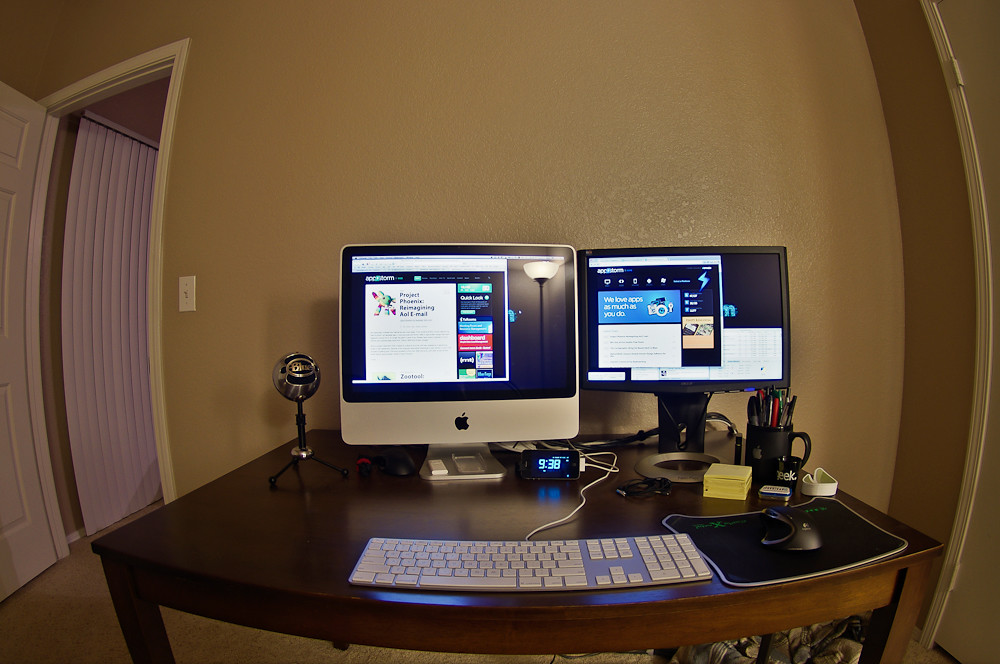
The good news: you don’t need a bigger desk to fix most of it. You need a few small, deliberate adjustments. Below is a practical, space-conscious guide to setting up a more comfortable screen in a tight footprint.
A quick note before we start: this is general ergonomic and setup guidance, not medical advice. If your eye discomfort is persistent, painful, or worsening, talk to an eye-care professional.
Start With Distance: Push the Screen Back
The single most common small-desk problem is sitting too close to the monitor. On a shallow desk, the screen ends up just inches from your face because there’s nowhere else for it to go — and your eyes work harder the closer the screen sits.
A widely used rule of thumb for comfortable screen distance is roughly an arm’s length away — about 20 to 28 inches (50 to 70 cm) from your eyes to the screen. Larger monitors generally want to sit a little farther back than smaller ones.
Try this quick check: sit back in your chair as you normally would, then reach your arm straight out toward the screen. Your fingertips should roughly graze the display. If you’re well short of touching it, you have room. If your palm is flat against the panel, the screen is too close.
When the Desk Is Too Shallow to Get Distance
This is where small spaces get stuck. A standard monitor stand has a wide base that eats several inches of depth and forces the screen forward. The fix is a monitor arm that clamps to the back edge of the desk. Because the screen floats off a pole at the rear, you reclaim the entire desk footprint and you can push the monitor back and tilt it freely.
If a clamp arm isn’t an option — say, you’re a renter wary of clamping to a finish you don’t want to mark, or the desk edge is too thick — a slim riser can at least recover height without the bulky base. For a full breakdown of which one suits your desk, see Monitor Arm vs Monitor Stand vs Riser.
Get the Height Right
Distance and height work together. As a general guideline, the top of the screen should sit at or slightly below your eye level when you’re sitting upright, so your gaze drops slightly to look at the middle of the display. That gentle downward angle tends to feel more relaxed than craning upward.
Laptop users have the hardest time here, because the screen and keyboard are fixed together. Working off a bare laptop on a low desk usually means looking down at a screen that’s far too low. Two common fixes:
- Raise the laptop on a stand or a small riser until the top of the screen reaches eye level, then add an external keyboard and mouse so you’re not hunching to type.
- Add an external monitor at the right height and use the laptop as a secondary screen off to the side.
Either way, the goal is the same: a screen high enough that your neck stays neutral and your eyes look slightly down, not up.
Tame the Glare
Glare — reflections and bright light bouncing off or behind the screen — is one of the biggest contributors to tired eyes, and small rooms make it tricky because the desk often has to live wherever it fits, frequently right by the only window.
Position Relative to the Window
The ideal orientation is to place the screen perpendicular to the window, so daylight comes from the side rather than directly in front of or behind the display.
- Window behind the screen (you facing it): the bright window sits in your field of view, forcing your eyes to constantly adjust between the bright glass and the darker screen.
- Window behind you: daylight reflects straight off the screen into your eyes.
- Window to the side: light skims past the screen instead of washing it out or glaring back at you.
In a small space you may not be able to rotate the whole desk, but even angling the monitor a few degrees — easy with an arm — can knock out a reflection. Sheer curtains or a simple blind also help soften strong afternoon light without leaving you in the dark.
Position Your Lamp So It Doesn’t Bounce Back
A desk lamp is essential when daylight fades, but on a small desk it’s tempting to point it straight at the work surface — which can bounce light right off a glossy screen. A clamp-on lamp is the small-space favorite here: it grips the desk edge or a shelf and floats the light above the work area, off the surface entirely, so you free up precious desktop real estate.
Aim for light that falls on your desk and keyboard from the side, not light that shines toward the screen or into your eyes. For specific picks that clamp without a big footprint, see Best Clamp-On & Monitor Desk Lamps for Small Spaces.
Add Bias Lighting Behind the Monitor
One of the cheapest, most effective small-desk upgrades is bias lighting — a soft light placed behind the monitor that gently illuminates the wall it faces.
The idea is to reduce the harsh contrast between a bright screen and a dark wall behind it. When the only bright thing in a dim room is your display, your eyes work to bridge that gap. A modest glow behind the screen softens the difference so the screen doesn’t feel like it’s punching a hole in the dark.
A thin LED strip stuck to the back edge of the monitor is the classic approach, and it takes up zero desk space — perfect when every square inch counts. Keep it dim and neutral-to-warm; the goal is a soft wash on the wall, not a second light source competing with the screen.
Match Screen Brightness to the Room
A screen that’s much brighter or much dimmer than its surroundings makes your eyes work harder all day. The target is balance: the screen should look about as bright as the well-lit area around it, not glowing like a flashlight in a dark room and not washed out next to a sunny window.
A simple manual check: open a page with a white background, like a blank document. If the white looks like it’s glowing, the screen is too bright for the room. If it looks dull and gray, it’s too dim. Adjust until the white roughly matches a piece of white paper held nearby under the same lighting.
Because light changes through the day in a small apartment — bright morning, dim evening — you’ll likely need to nudge brightness more than once. Many devices can do this automatically; if yours has an auto-brightness or adaptive setting, it’s worth trying. And consider turning the brightness down at night rather than lighting up the whole room to match a blazing screen.
Build the 20-20-20 Habit
No setup eliminates the simple fact that staring at one fixed point for hours is tiring. A popular, easy-to-remember habit is the 20-20-20 guideline: every 20 minutes, look at something about 20 feet away for 20 seconds.
The point is to give your eyes a regular break from the close, fixed focus of a screen and let them relax on something farther off. In a small apartment you may not have a 20-foot sightline indoors — looking out a window works well, and so does simply focusing on the farthest point in the room.
Pair it with the basics: blink fully and often (people tend to blink less while staring at screens), and stand up now and then to reset your posture along with your eyes. A small timer or a gentle reminder app makes the habit stick until it becomes automatic.
Putting It Together on a Tiny Desk
You don’t need to do everything at once. If you’re starting from a bare laptop on a cramped desk, here’s a sensible order:
- Get distance and height first. Float the screen back and up with an arm (or raise the laptop on a riser plus an external keyboard).
- Kill the obvious glare. Angle the screen away from the window and reposition your lamp so it lights the desk, not the display.
- Balance the brightness to the room, and turn it down in the evening.
- Add bias lighting behind the monitor for night sessions — cheap, space-free, and surprisingly effective.
- Adopt the 20-20-20 habit so no single fix has to carry the whole load.
Each step is small. Together, they turn a tight, awkward corner into a screen setup your eyes can actually relax at — no extra square footage required.
FAQ
How far should my monitor be from my eyes at a small desk?
A common guideline is roughly an arm’s length — about 20 to 28 inches (50 to 70 cm). If you reach toward the screen and your fingertips just graze it, you’re in a reasonable range. Larger monitors generally sit a bit farther back.
My desk is too shallow to push the monitor back. What can I do?
A clamp-on monitor arm is the best small-space fix: it mounts to the rear edge, frees the whole desktop, and lets you push the screen back and tilt it. If you can’t clamp, a slim riser at least recovers height. See Monitor Arm vs Monitor Stand vs Riser.
Where should I put my desk relative to the window?
Perpendicular to the window is ideal, so daylight comes from the side rather than directly in front of or behind the screen. That reduces both reflections on the screen and bright light shining into your eyes.
What is bias lighting and is it worth it in a small apartment?
Bias lighting is a soft light placed behind the monitor to gently illuminate the wall, reducing the harsh contrast between a bright screen and a dark background. It takes up zero desk space — usually a thin LED strip on the back of the monitor — which makes it especially handy in tight setups.
What’s the 20-20-20 rule?
Every 20 minutes, look at something about 20 feet away for 20 seconds. It’s an easy reminder to give your eyes regular breaks from close, fixed focus. If you don’t have a long indoor sightline, look out a window or at the farthest point in the room.
Should my screen be bright or dim?
Aim to match the screen’s brightness to the room: about as bright as the lit area around it. A quick test — open a blank white page; if the white glows, it’s too bright, and if it looks gray, it’s too dim. Turn brightness down in the evening rather than overlighting the room.