How to Mount a Monitor Without Drilling
You want your monitor off the desk and up at eye level. What you don’t want is a fistful of drywall anchors, a patch kit, and an awkward conversation with your landlord about your security deposit.
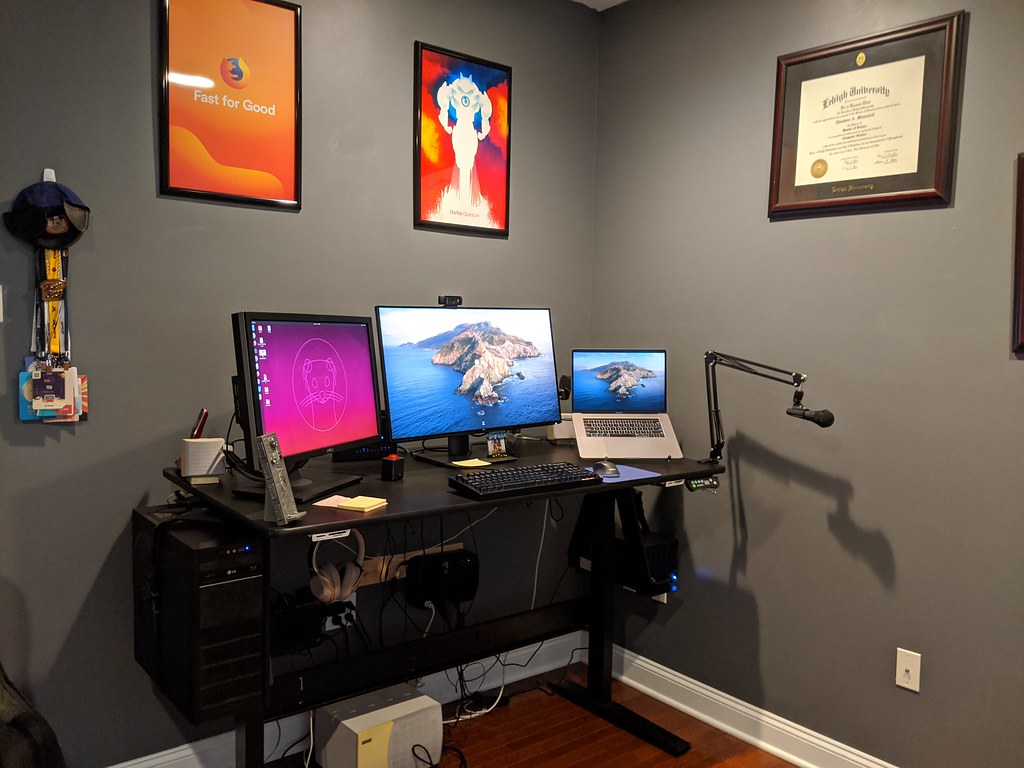
Good news: you don’t need to drill anything. The most popular monitor mounts for renters clamp, slide, or stand — no holes, no studs, no walls involved. They attach to your desk or sit on the floor, and they come down clean when you move.
This guide walks through the three no-drill methods, how to pick the right one, how to measure your desk so the mount actually fits, and how to dial in eye level once it’s up.
The 3 No-Drill Mounting Methods
Almost every drill-free monitor solution falls into one of three buckets. They all skip the wall — the difference is where they grab on.
1. Desk-Edge Clamp (C-Clamp)
This is the most common no-drill mount, and for good reason. A C-clamp arm grips the back edge of your desk like a giant binder clip — a top plate rests on the desktop, a bottom plate tightens up against the underside, and a screw locks it in place.
Best for: Most renters with a standard desk that has an accessible, open back edge.
- No holes, no tools beyond the included screw
- Tightens and removes in seconds
- Holds full monitor arms with great range of motion
The catch: your desk edge has to be the right thickness (more on measuring below), and the back edge needs clearance behind it — a desk shoved flush against a wall can block the clamp.
2. Grommet Mount
A grommet mount uses a hole in your desktop instead of the edge. Many desks ship with a pre-cut grommet hole (the round cable port you’ve probably ignored). A bolt drops through the hole and tightens against a plate underneath.
Best for: Desks with an existing grommet hole, or desks pushed flat against a wall where a clamp won’t fit.
- Rock-solid, doesn’t shift
- Works when the back edge is blocked
- Frees up your desk’s rear edge
The honest trade-off: if your desk doesn’t already have a hole, mounting this way means cutting one — which is drilling, just into the desk instead of the wall. For renters, only do this on furniture you own. Many arms include both clamp and grommet hardware, so you can choose.
3. Freestanding / Pole Mount
A freestanding mount doesn’t attach to your desk at all. It’s a weighted base that sits on the desktop (or floor, for taller poles), with an arm rising off it.
Best for: Glass desks, fragile or thin surfaces, desks with no usable edge or hole, or anyone who reshuffles their setup often.
- Zero attachment to the desk — fully damage-free
- Easy to reposition or move between rooms
- Great for surfaces a clamp would crack
The downside is footprint: the base takes up desk real estate, and freestanding mounts are generally less rigid than a clamped arm, so they can wobble more if you bump the desk. In a tight apartment, weigh that desk space carefully.
How to Choose the Right Method
Run through these questions in order and the answer usually picks itself.
- Is your desk pushed flat against a wall? If yes, and there’s no room behind it for a clamp, look at a grommet mount (if you have a hole) or freestanding.
- Is your desktop glass or under ~0.4 in / 1 cm thin? Skip the clamp — clamping force can crack glass or chew thin laminate. Go freestanding.
- Does your desk already have a grommet hole? If so, a grommet mount is the sturdiest no-cut option.
- None of the above? A desk-edge clamp is the default winner for most renters: secure, removable, and damage-free.
For specific renter-friendly picks across all three styles, see Best No-Drill Monitor Arms & Desk-Clamp Mounts for Renters.
How to Measure Your Desk Edge for a Clamp
This is the step people skip — and it’s the one that causes returns. A clamp only works inside a specific thickness range, almost always listed in the product specs.
Here’s how to measure in two minutes:
- Measure desk thickness. Stand a ruler or tape measure vertically against the back edge of your desk. Measure from the top surface to the underside. That number is your desk thickness — most clamps handle roughly 0.4 in to 3.3 in (10–85 mm), but always check the specific mount’s range.
- Check edge clearance. You need open access to the back edge from above and below. Measure how far the desk sits from the wall — you want a few inches so the clamp’s bottom plate and screw can fit and turn.
- Confirm a flat grip zone. The clamp needs a flat strip of edge with no lip, frame rail, or trim getting in the way. A rounded or beveled front edge is fine — it’s the back edge the clamp uses.
- Mind the surface. If it’s glass or particleboard with a thin veneer, recheck whether a clamp is safe at all (see the choosing section above).
Write your thickness number down before you shop. If your desk falls outside the clamp’s listed range, that mount won’t work, full stop.
Weight and VESA Basics
Two specs decide whether a mount physically fits your monitor.
VESA pattern. This is the square grid of screw holes on the back of your monitor, measured in millimeters. The two common sizes are 75 x 75 mm and 100 x 100 mm. Check your monitor’s manual or the holes themselves, and match the mount. If your monitor has no VESA holes (some slim models don’t), look for a mount sold with a VESA adapter plate.
Weight capacity. Every mount lists a supported weight range — often something like 4.4–17.6 lb (2–8 kg). Find your monitor’s weight in its specs and make sure it lands inside that window. Note that arms often have a minimum weight too: hang a panel that’s too light on a gas-spring arm and it’ll drift upward instead of staying put.
When in doubt, pick a mount that puts your monitor comfortably in the middle of its weight range, not at the very edge.
Setting Your Monitor to Eye Level
The whole point of getting the monitor off the desk is better posture. Here’s the standard ergonomic target once it’s mounted:
- Top of the screen at or just below eye level. When you’re sitting up straight looking forward, your eyes should land on the upper third of the screen. You glance slightly down to read, never up.
- Arm’s length away. Sit back and reach out — your fingertips should roughly graze the screen. About 20–30 in (50–75 cm) is the usual comfortable range.
- Tilt the top back slightly. A small backward tilt of around 10–20 degrees keeps the whole screen square to your gaze and cuts glare.
If you wear progressive or bifocal lenses, set the screen a touch lower so you’re not tipping your head back to read through the bottom of your glasses.
Adjust your chair and posture first, then bring the monitor to meet your eyes — not the other way around. For the full sitting setup, see The Renter’s Guide to Mounting Anything Without Drilling.
Tidying Up the Cables
A floating monitor looks great until a tangle of cables dangles underneath it. Quick wins:
- Route along the arm. Most arms have built-in clips or a channel — tuck the video and power cables in as you go.
- Use removable cable clips. Adhesive-backed clips or reusable hook-and-loop ties keep slack off the floor. Choose removable adhesive so nothing peels paint or laminate when you move.
- Leave slack at the joints. Don’t pull cables tight across the arm’s elbows — give them room to bend as the arm moves, or they’ll strain over time.
- Bundle at the desk leg. Run the cable down a back leg and bundle it there to keep the under-desk area clear.
Troubleshooting and FAQ
My clamp keeps loosening or slipping.
Usually the screw isn’t fully tight, or there’s something soft between the plates and the desk. Re-tighten firmly (hand-tight plus a little), and if you used a protective pad, make sure it isn’t compressing unevenly. If the desk edge is below the clamp’s minimum thickness, the grip will never hold — switch methods.
My monitor drifts up or sags down on a gas-spring arm.
Gas-spring arms have a tension dial (often a hex screw on the arm). Tighten it if the monitor sags, loosen it if it floats upward. The monitor also needs to be within the arm’s weight range for the spring to balance correctly.
Will a clamp damage my desk?
On solid wood, MDF, or thick laminate, no — clamp force is spread across the plates. Add the included rubber pads, or a folded cloth, for extra protection. On glass or thin veneer, don’t risk it; go freestanding.
Can I clamp to a desk that’s against the wall?
Only if there’s clearance behind it for the bottom plate and screw. If the desk is flush to the wall, use a grommet or freestanding mount instead.
Do all monitors fit these mounts?
Most do, as long as the VESA pattern and weight match. Monitors without VESA holes need an adapter plate — check before buying.
Is a grommet mount really no-drill?
Only if your desk already has a hole. Cutting a new one is drilling — into your furniture, not the wall. Fine on a desk you own, not on borrowed or rented furniture.
The Bottom Line
You have three solid ways to get your monitor up and your desk clear without touching a wall: clamp to the edge, bolt through a grommet, or stand it on a weighted base. Measure your desk first, match the VESA and weight specs, then set the screen so the top sits right at eye level.
Done right, it’s a setup that improves your posture today and comes down without a trace the day you move — deposit intact.