Small-Desk Accessories That Free Up Surface Space
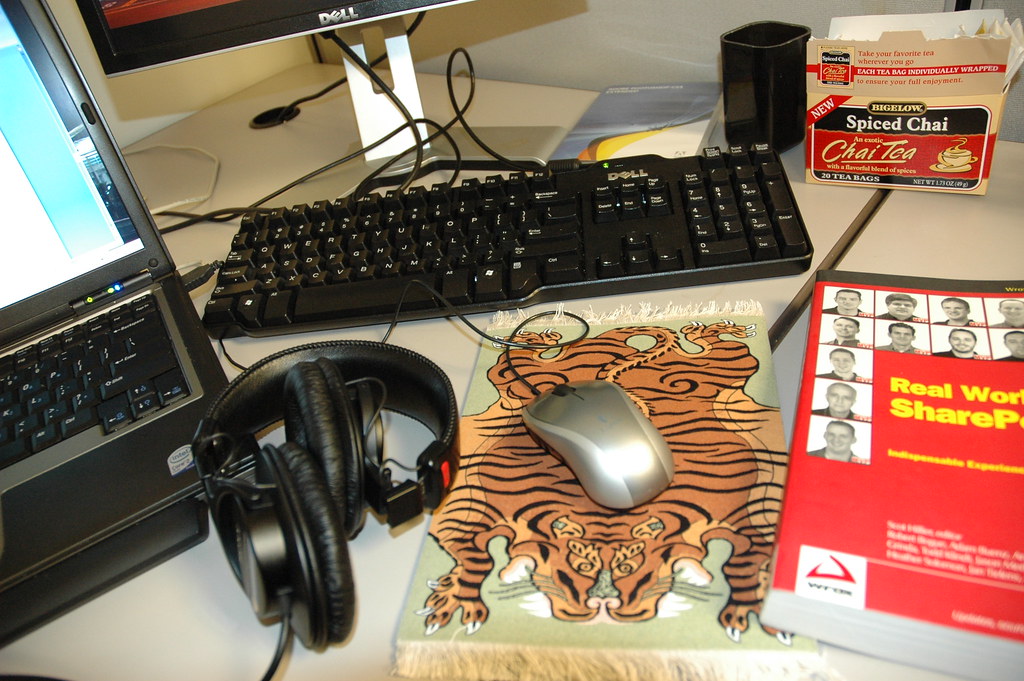
When your desk is the size of a placemat, every square inch counts. A laptop, a notebook, a coffee mug, and a charging cable can swallow a small surface whole — leaving you hunched, cramped, and shuffling things around just to find room to write.
The good news: you don’t need a bigger desk. You need smarter accessories.
This guide walks through the accessories that actually reclaim surface space on a tiny desk — and explains the ergonomic payoff of each. Because the best small-space upgrades do double duty: they free up your desktop and help you sit better.
Here’s the core idea to keep in mind as you read: the most valuable real estate on a small desk is the flat surface in front of you. Anything you can lift up, clamp to the side, or move under the desk gives that real estate back.
How to Think About a Small Desk
Before buying anything, it helps to sort your desk into three zones:
- The work zone — the area directly in front of you where your hands rest and you actually do things. Protect this fiercely.
- The vertical zone — the air above your desk and the wall behind it. Massively underused on most small setups.
- The under-desk zone — everything below the surface. Prime storage that costs you zero desktop space.
Almost every accessory below works by moving clutter out of the work zone and into the vertical or under-desk zones. That’s the whole game.
A quick ergonomic north star while you plan: aim for your screen’s top edge at roughly eye level, your elbows bent near 90 degrees, and your feet flat on the floor (or a footrest). We’ll point back to these targets as we go.
Laptop Stands: The Single Best Starter Upgrade
A laptop lying flat on a small desk is a double problem. It forces you to look down — rounding your neck and shoulders — and its footprint eats your prime work zone.
A laptop stand fixes both at once.
By lifting the screen toward eye level, it brings your head up and your spine into a more neutral position. That’s the standard ergonomic guidance: the top of your screen should sit at or just below eye level so you’re not constantly craning down.
For surface space, the win is sneaky but real. Many stands create usable space underneath the laptop — enough to tuck a slim keyboard, a notebook, or your phone. A vertical or near-vertical stand (the kind that holds a closed laptop on its edge) is even more dramatic, shrinking the laptop’s footprint to almost nothing.
One catch worth naming: the moment you raise your laptop, the built-in keyboard sits too high and at a bad angle. So a laptop stand really wants a separate keyboard and mouse to go with it. More on those below.
If you’re weighing styles — fixed vs. folding, riser vs. vertical — that’s a whole topic on its own.
Best Laptop Stands for Small Desks
Monitor Arms vs. Risers: Reclaiming the Footprint
If you use an external monitor, how you mount it is one of the biggest space decisions you’ll make on a small desk.
Monitor Risers (Stands)
A riser is a small platform your monitor sits on. It lifts the screen toward eye level — good ergonomics — and the gap underneath becomes a handy parking spot for a keyboard, sticky notes, or a small tray.
The limitation: the riser still occupies the desk. Its base takes up footprint, and the monitor’s own stand sits on top of it. On a genuinely tiny desk, that base can be the very thing crowding you.
Monitor Arms
A monitor arm clamps to the edge of your desk (or grommet hole) and floats the screen on an adjustable arm. This is the space-saving champion for small desks.
Here’s why: the arm removes the monitor’s original stand entirely, freeing the footprint it used to occupy. You can then push the screen back toward the wall, pull it forward only when needed, and reclaim the desktop in front of it. You also gain easy height, tilt, and depth adjustment — which makes hitting that eye-level, arm’s-length ergonomic target far easier.
The trade-offs are real, though. Arms cost more, require a desk edge sturdy enough for a clamp, and renters should confirm the clamp won’t mar the surface (a felt or rubber pad usually handles this).
A full breakdown of which option fits which desk:
Monitor Arm vs Monitor Stand vs Riser
Clamp-On Lamps: Light Without the Footprint
A traditional desk lamp has a weighted base that can eat a surprising chunk of a small surface. On a tight desk, that base is pure lost space.
A clamp-on (or clamp-mount) lamp solves it elegantly. It grips the edge of your desk or a shelf and cantilevers the light over your work — zero base, zero desktop footprint.
The ergonomic benefit is genuine: good task lighting reduces eye strain and lets you keep your screen brightness lower and more comfortable. Position the light so it falls on your work surface from the side, not bouncing glare off your screen back into your eyes.
Look for an adjustable arm and head so you can aim the light precisely. For renters, a clamp lamp is friendlier than any wall-mounted fixture — it leaves no holes and travels with you.
Compact Keyboards and Mice: Smaller Footprint, Better Reach
A full-size keyboard with a number pad is wide. On a small desk, it pushes your mouse far out to the right, forcing your shoulder into a reach that gets uncomfortable over a long day.
A compact keyboard — tenkeyless (no number pad) or a smaller 60–75% layout — narrows the footprint significantly. That frees desk width, and it lets your mouse sit closer to your body’s centerline, which is the more ergonomic, shoulder-friendly position.
A few practical notes:
- Tenkeyless (TKL) is the easy middle ground: you keep arrow keys and function row but lose the number pad.
- Smaller layouts (60–75%) save the most space but move some keys to secondary functions — fine for typing, a small adjustment for spreadsheet-heavy work.
- A compact or low-profile mouse pairs well, and a slim mousepad keeps things tidy without adding bulk.
If you’ve moved your laptop onto a stand, a separate compact keyboard and mouse aren’t optional — they’re what make the stand ergonomic. They let your hands stay low while your screen stays high.
Footrests: Free Up the Desk by Working the Floor
This one surprises people. A footrest doesn’t sit on your desk at all — so how does it free up surface space?
Indirectly, but meaningfully. On a small setup, you often can’t adjust your chair and desk independently the way you’d like. If your chair is raised so your arms reach the desk comfortably, your feet may dangle — which is uncomfortable and bad for circulation and posture.
A footrest lets you raise your chair to the right height for your arms and screen without sacrificing your legs. Feet supported, knees near 90 degrees, weight off the back of your thighs. That, in turn, means you can dial in the rest of your ergonomic setup correctly instead of compromising.
It uses the under-desk zone — space that was doing nothing anyway. Some footrests also rock or tilt, which encourages small movements and keeps you from going stiff.
Under-Desk Trays: Hide the Stuff You Don’t Touch
Look at your desk right now. How much of the clutter is things you actually use every minute versus things that just live there — a charger brick, a tangle of cables, a pen cup, a notebook you reach for twice a day?
Under-desk trays move that second category out of sight and out of your work zone.
A few common types:
- Slide-out drawers that mount beneath the desktop for pens, notebooks, and small items.
- Cable management trays that hold a power strip and corral cords so they’re not draped across or behind your desk.
- CPU or device holders for keeping a small PC or hub off the floor and off the desk.
The cable tray deserves special mention for small spaces. Loose cables don’t just look messy — they pull devices toward the edge, snag on your knees, and make the whole setup feel chaotic. Getting them off the surface and under the desk is one of the highest-impact, lowest-cost upgrades you can make.
For renters especially, you’ll want no-drill, clamp-on, or adhesive options that won’t damage the desk or threaten your deposit:
Best No-Drill Under-Desk Cable Management Trays
Headphone Hooks: Reclaim a Surprising Amount of Space
Headphones are bulkier than they feel. Laid flat on a small desk, a pair of over-ear headphones occupies real, irreplaceable work-zone space — and they slide around, collect crumbs, and get knocked off.
A simple headphone hook fixes it for a few dollars. Most clamp or stick to the edge or underside of your desk, holding your headphones in the vertical zone where they’re out of the way but instantly grabbable.
There’s no major ergonomic claim here — it’s pure space reclamation. But on a tiny desk, recovering the footprint of a headphone pair is the difference between a usable corner and a cluttered one. It’s a small upgrade that punches above its price.
Vertical Organizers: Use the Air and the Wall
The single most underused space in any small office is vertical: the air above your desk and the wall behind it.
Vertical organizers move storage off your surface and upward:
- Monitor-mounted shelves and ledges that perch on top of your screen for sticky notes or a small plant.
- Desktop risers and shelf units that create a second tier — your monitor or laptop stand goes up top, and the cleared surface underneath becomes storage.
- Pegboards and wall organizers that hang behind the desk to hold supplies, headphones, and small bins. (Renters: look for ones that mount with adhesive strips or lean against the wall rather than screwing in.)
- Vertical document and tablet holders that store items on their edge instead of laid flat.
The principle is the same throughout this guide: anything you can stand up or hang up is no longer competing for the flat surface where your hands need to work.
Putting It Together: A Small-Desk Game Plan
You don’t need everything here. Start with the upgrades that clear the most space and fix the most posture, then add as you go.
A sensible order for most small desks:
- Lift your screen with a laptop stand or monitor arm. This is the biggest ergonomic and space win, and it changes how everything else fits.
- Add a compact keyboard and mouse so the raised screen actually works for your hands.
- Clear the cables with an under-desk tray. Instant visual and physical breathing room.
- Sort your lighting and seating — a clamp lamp off the surface, a footrest under it — so the ergonomics hold up over long sessions.
- Go vertical with hooks and organizers to move the last bits of clutter off your surface.
Run through your three zones one more time. Is anything sitting in your work zone that could live in the vertical zone or under the desk instead? If yes, there’s space to reclaim.
Quick Reference: What Each Accessory Frees Up
- Laptop stand — clears the laptop’s footprint, creates usable space underneath; raises screen toward eye level.
- Monitor arm — removes the monitor stand’s footprint entirely; floats the screen for full height and depth adjustment.
- Monitor riser — lifts the screen and opens parking space underneath, though the base still uses the desk.
- Clamp-on lamp — eliminates the lamp base; good task lighting reduces eye strain.
- Compact keyboard and mouse — narrows footprint and brings the mouse closer to your centerline.
- Footrest — uses the under-desk zone; lets you set chair height for your arms without dangling feet.
- Under-desk tray — moves cables, chargers, and small items below the surface.
- Headphone hook — recovers the footprint of an over-ear headset using the vertical zone.
- Vertical organizer — shifts storage up and onto the wall, off your work surface.
A small desk isn’t a limitation — it’s a constraint that rewards good design. Lift what you can, hang what you can, hide what you can, and the desk you already own will feel twice the size.